 To All Posts
How to Leave ArcPrime a Review on G2


We're so grateful you're willing to share your experience. Reviews from customers like you help other IP teams find ArcPrime and make confident decisions. Your voice carries real weight, and we don't take that lightly. The whole process takes about 5-10 minutes.
Before you start
G2 is built around verified reviews from real users, so they ask you to sign in before submitting. This confirms you're a genuine customer. Your login details are never shown on your review, and you can post anonymously if you'd prefer.
Write in your own words. G2's systems flag copy-pasted content, and your authentic perspective is what other readers are looking for.
Step 1: Go to ArcPrime's G2 page
Head to: g2.com/products/arcprime/reviews
Click the orange "Leave a Review" button on the right side of the page.
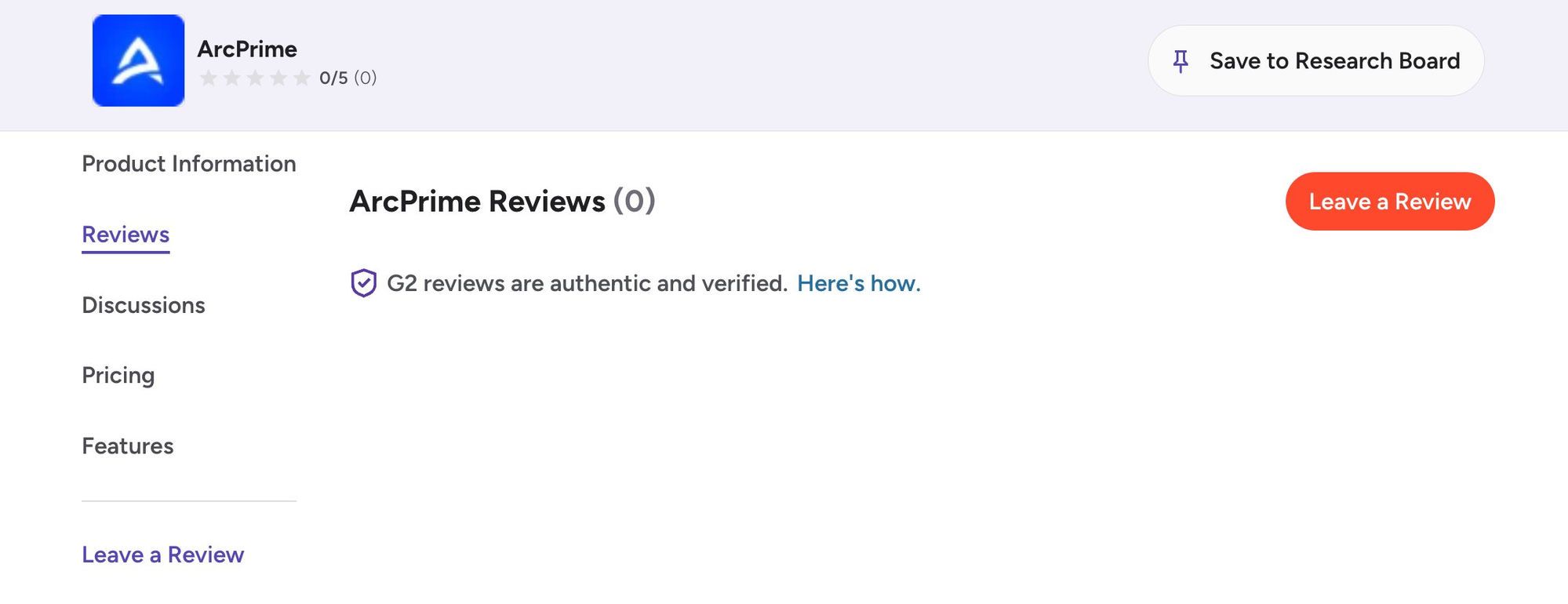
Step 2: Sign in
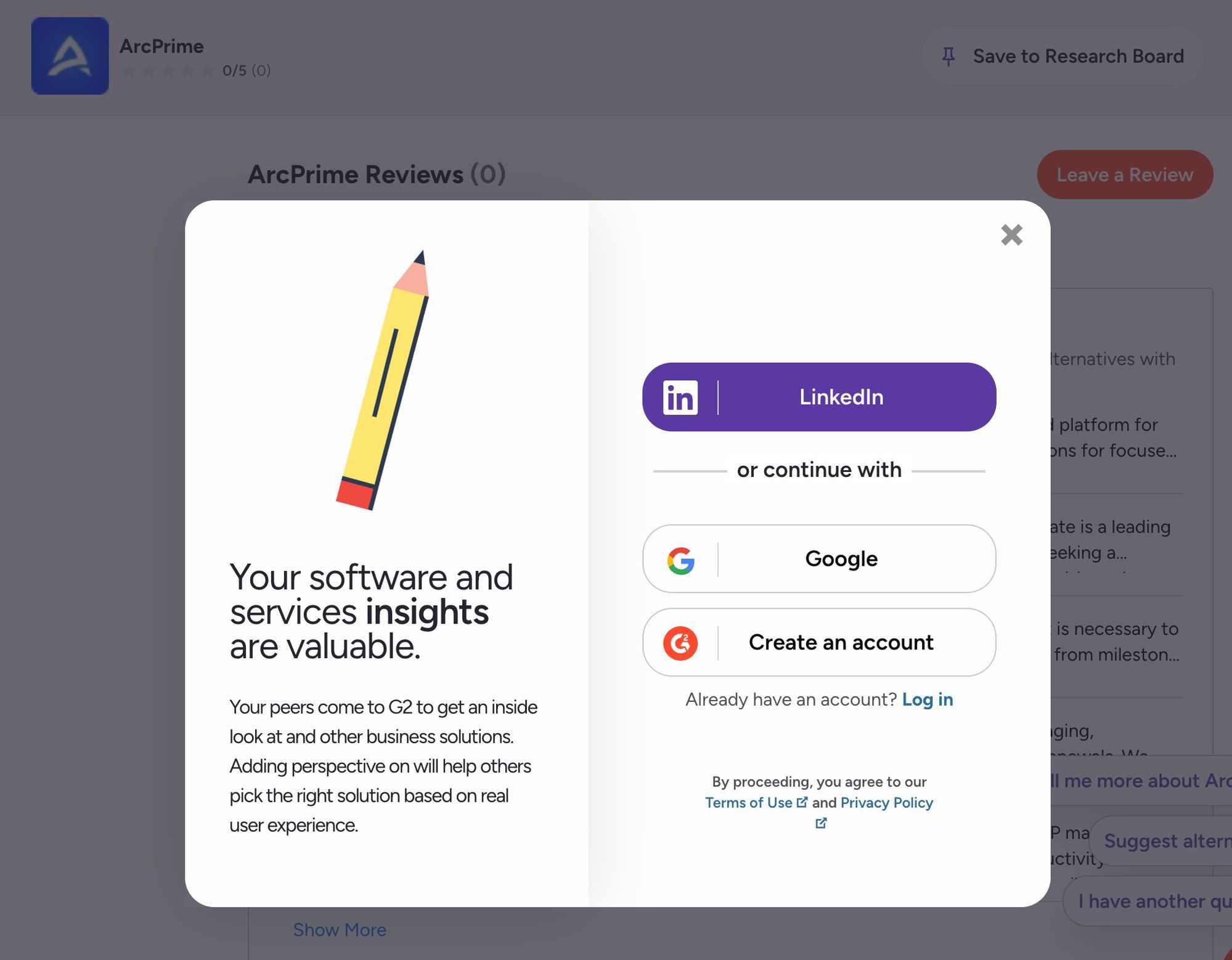
A sign-in modal will appear. G2 gives you three options:
- LinkedIn: The quickest option, especially if your profile is connected to your company.
- Google: Works if your Google account is tied to your work domain.
- Create an account: Sign up with your business email directly.
If you already have a G2 account, click "Log in" at the bottom of the modal.
Using a personal email address that isn't connected to a company domain usually leads to a rejected review. LinkedIn or a work email gets you through reliably.
Step 3: Choose how you want to leave your review
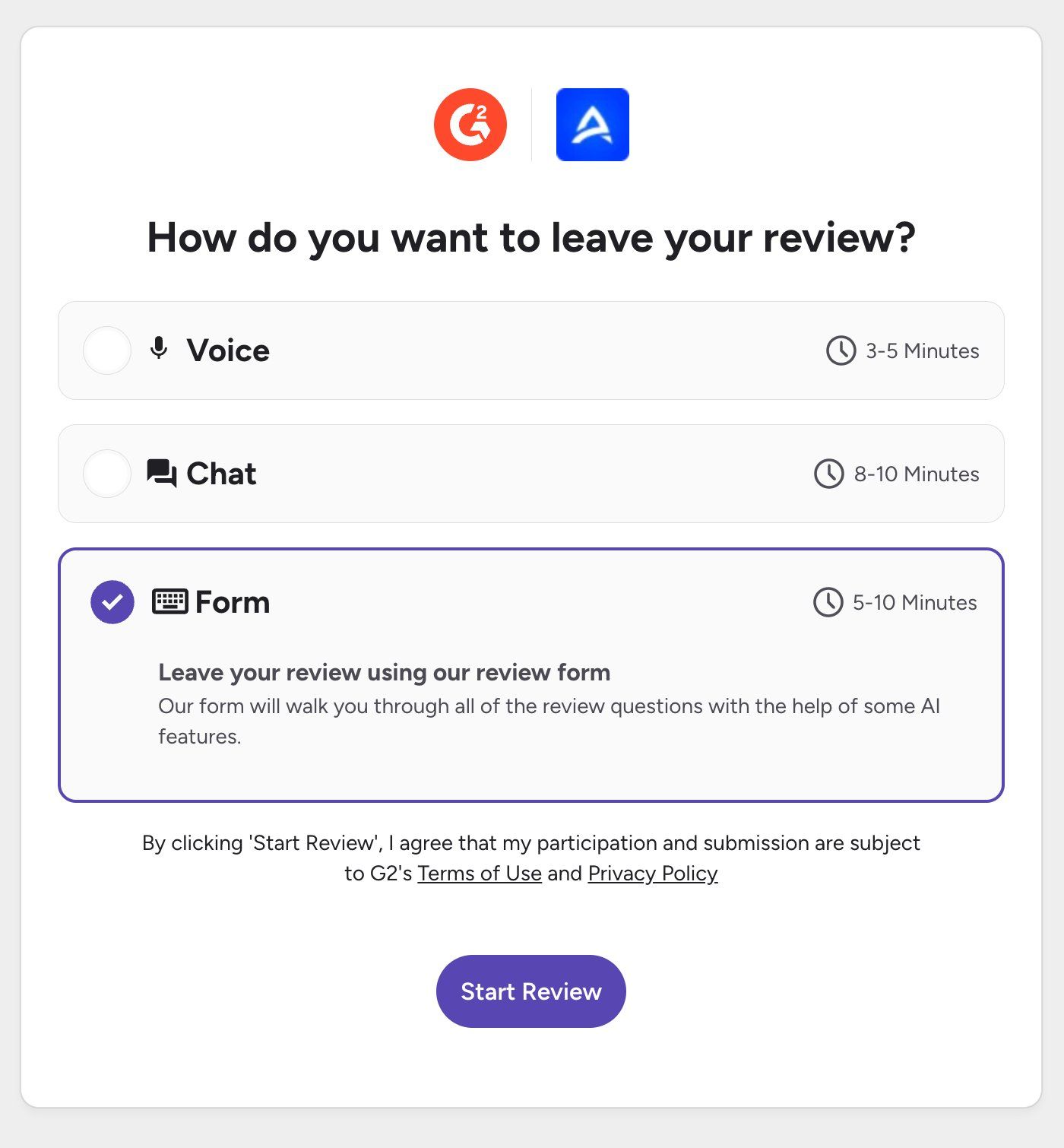
After signing in, G2 gives you three ways to complete your review:
- Voice (3-5 minutes): Answer questions by recording your voice. G2 transcribes your responses.
- Chat (8-10 minutes): Answer questions in a back-and-forth conversation with G2's AI.
- Form (5-10 minutes): Fill out a written form at your own pace.
These instructions will continue with the form option.
Step 4: Fill out the review form
The form is broken into three sections that you'll see across the top: About the Product, About You, and About Your Organization. G2 walks you through one question at a time, and each screen has a Review Helper on the right side with suggestions if you want guidance.
The most important question is what you like best about ArcPrime. Be specific about what has made a real difference for your team. A few things you might draw on:
- AI-powered claims charting and prior art search
- Coverage gap analysis and continuation recommendations
- Portfolio pruning and renewal optimization
- How quickly you were up and running compared to other tools
- Reduction in outside counsel costs
There are several questions across the three sections, including ratings, written responses, and feature selections. Required fields are marked with a red asterisk. Please fill in as many of the optional ones as you can, the more complete your review, the more useful it is to other readers.
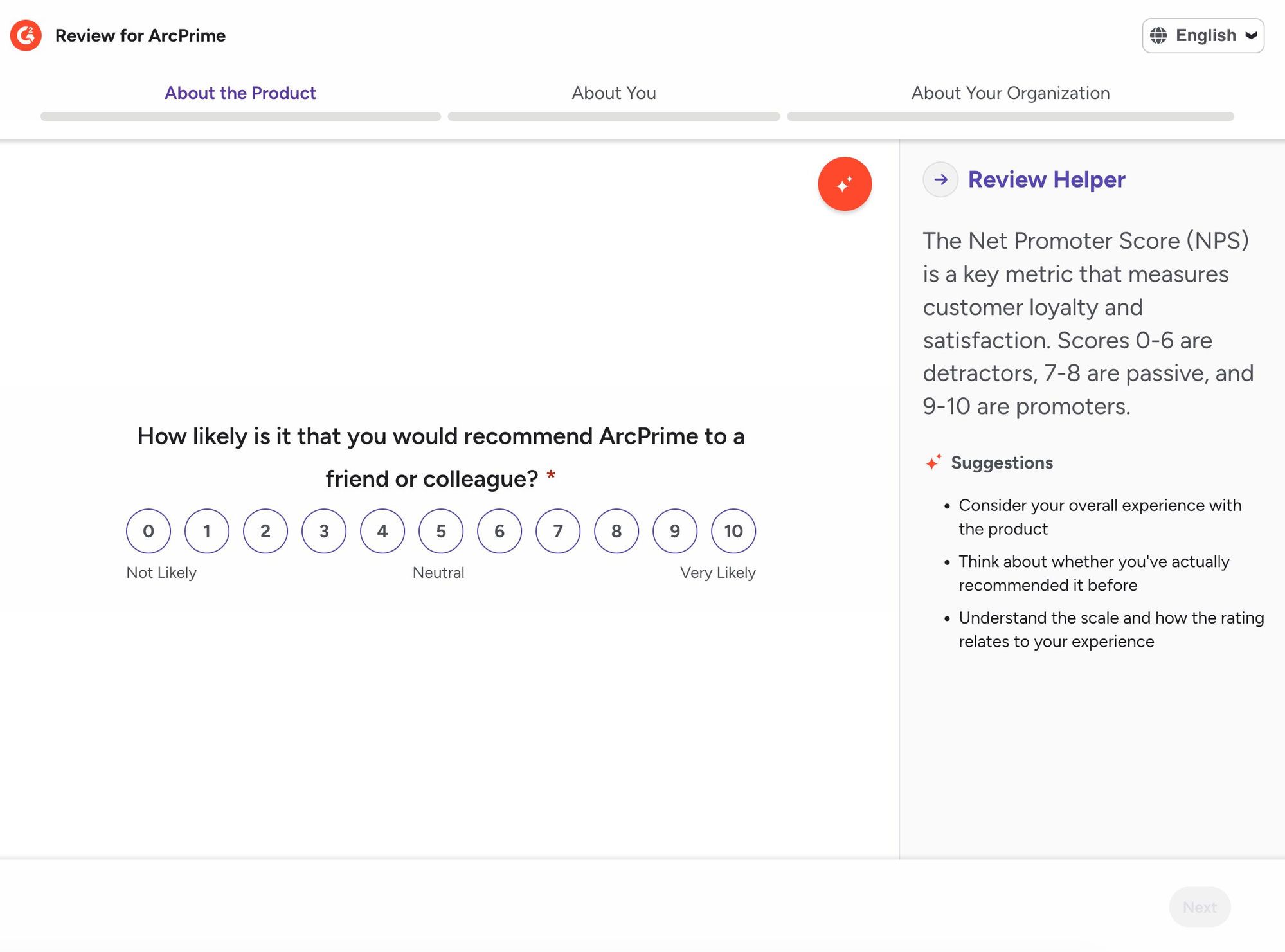
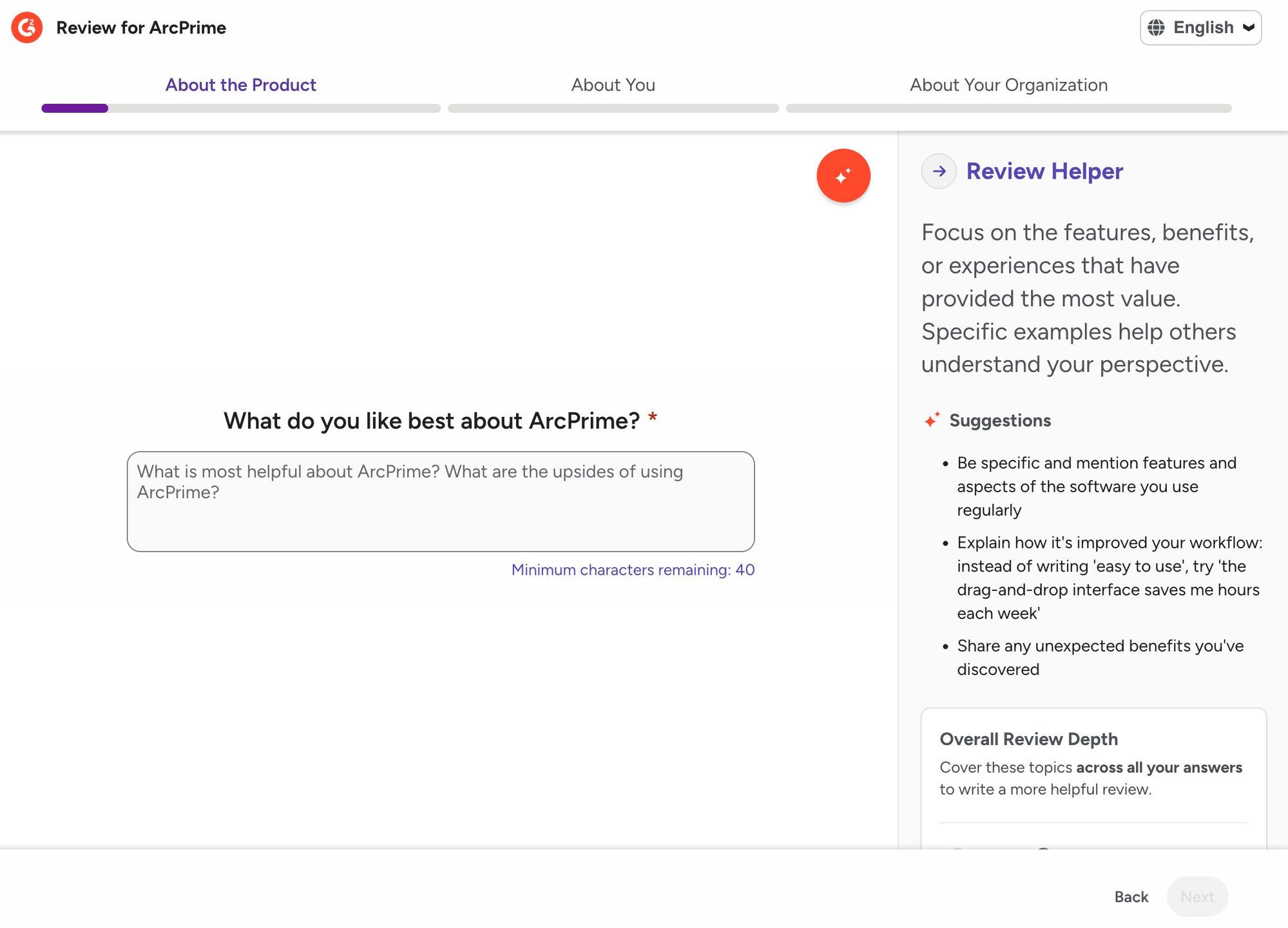
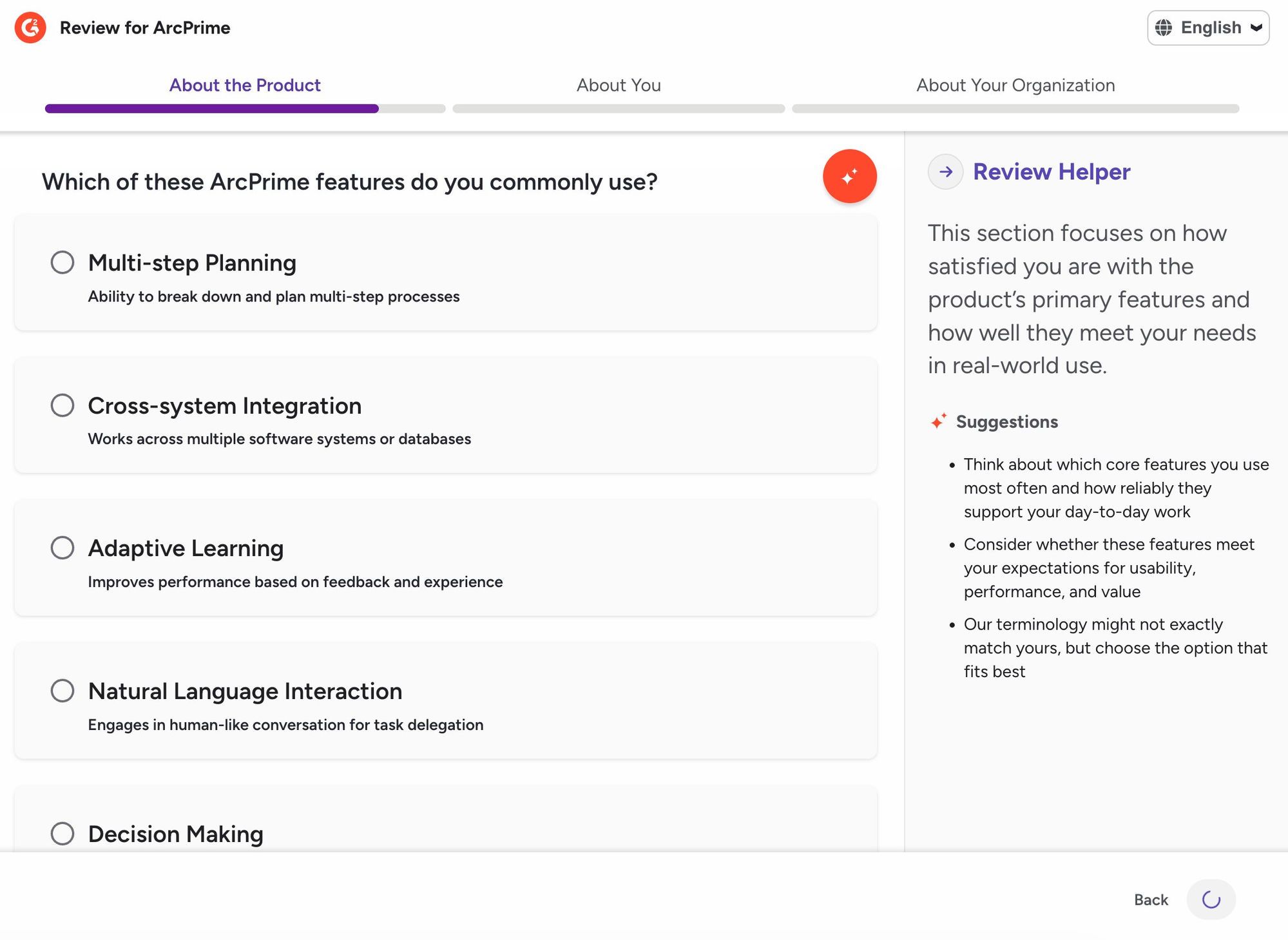
Click "Next" after each screen to continue through the form.
Step 5: Confirm you're a current user
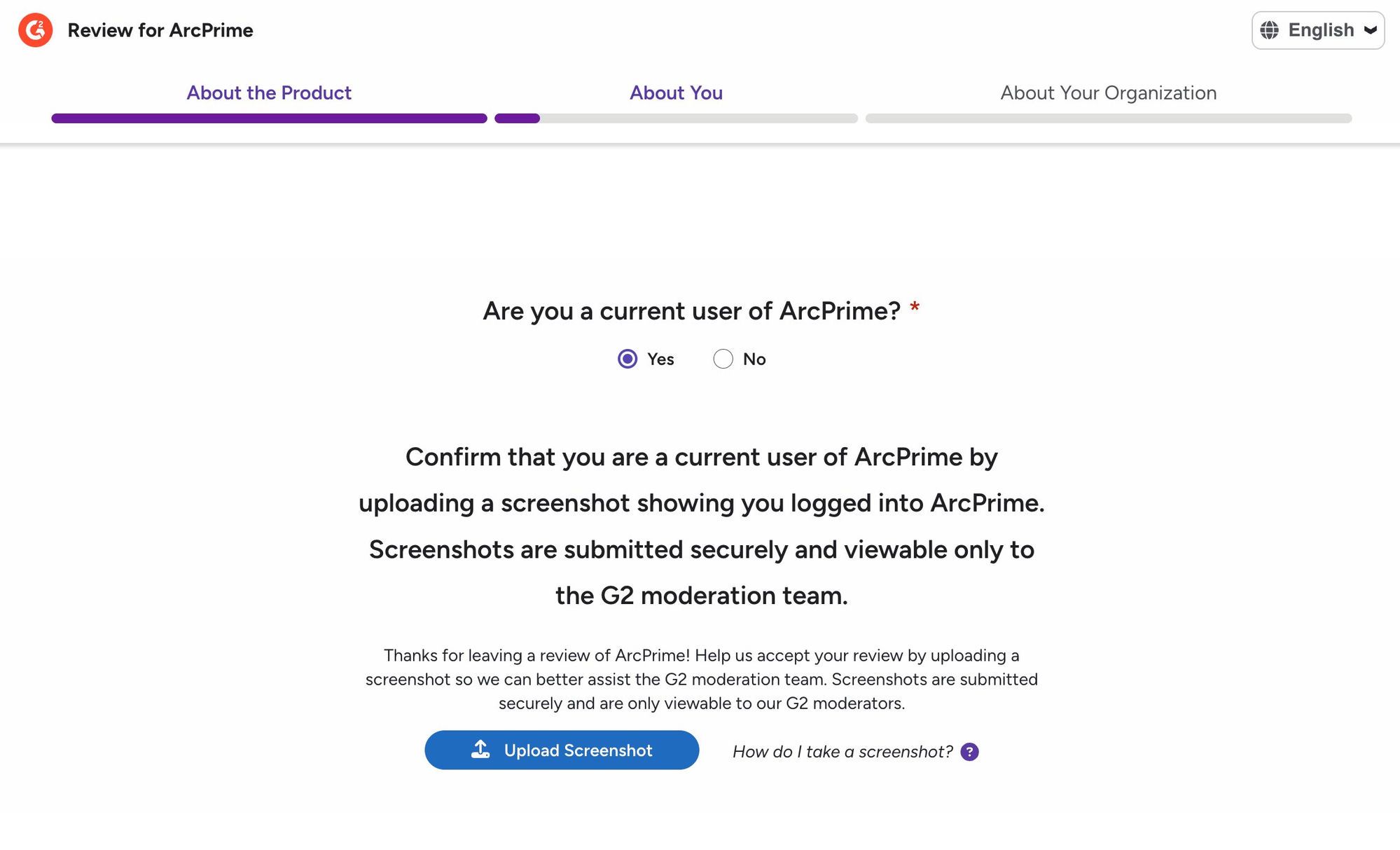
G2 will ask you to confirm you're an active ArcPrime user and upload a screenshot showing you logged in. This is what gets your review approved quickly rather than held up in moderation.
- Select "Yes" for "Are you a current user of ArcPrime?"
- Log in to your ArcPrime account at go.arcprime.com
- Take a screenshot of your dashboard with your name visible. (Mac: Cmd + Shift + 3 / Windows: Win + PrtScn)
- Upload it using the "Upload Screenshot" button.
G2 confirms that screenshots are submitted securely and are only viewable to their moderation team.
Step 6: Add your organization details
The last section asks G2 to associate your review with a verified company.
- Organization name: The name of the company where you use ArcPrime.
- Organization URL: Your company's website (e.g., company.com).
- Industry: Select the option that best fits your field.
- Are you an employee, agent, or representative of ArcPrime? Select No.
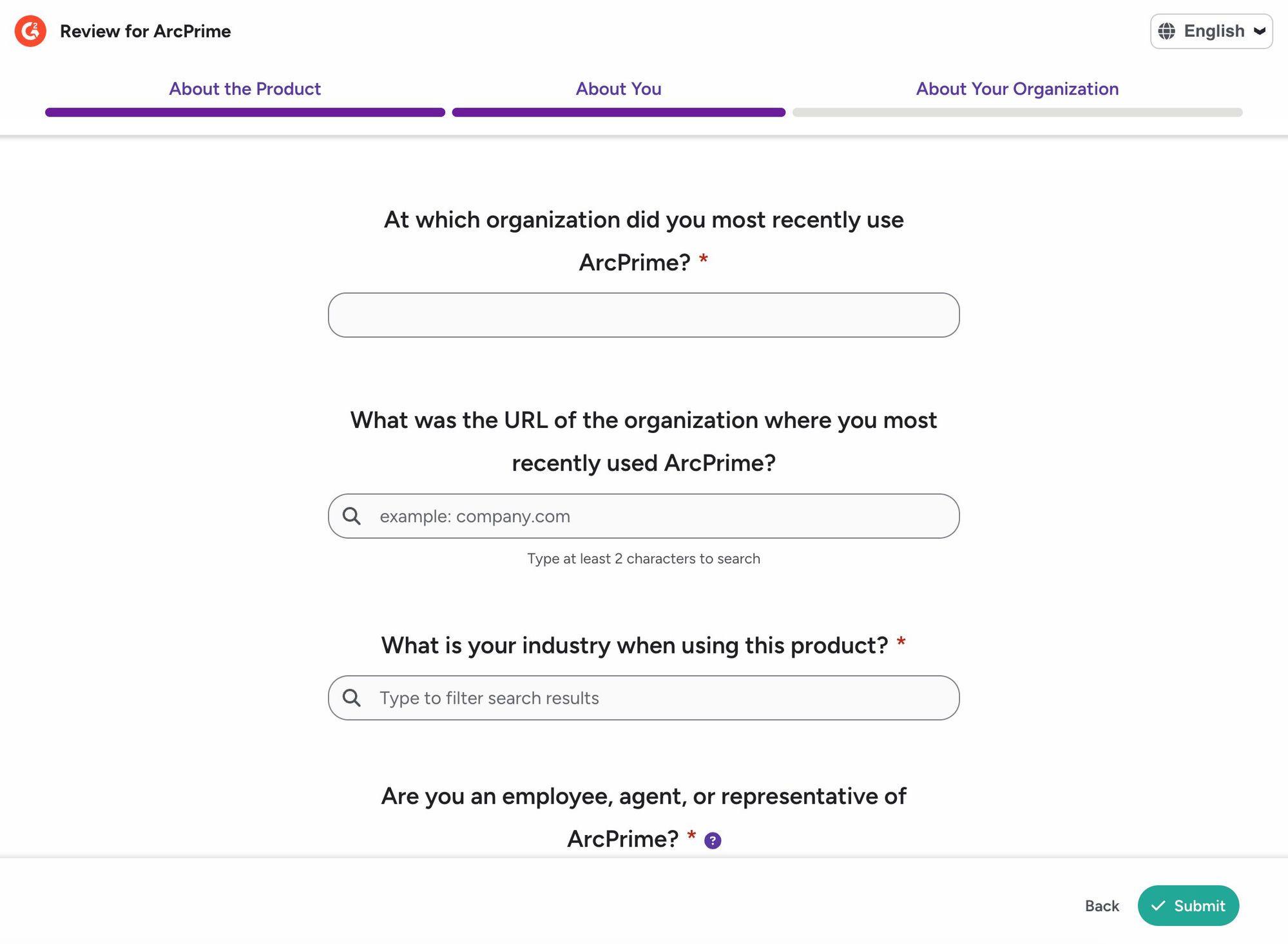
When everything is filled in, click the green "Submit" button in the bottom right.
Quick tips
| Do | Don't |
|---|---|
| Use LinkedIn or your business email to sign in | Use a personal Gmail address |
| Write about your actual experience | Copy and paste from other sources |
| Upload an ArcPrime dashboard screenshot | Skip the user verification step |
| Fill in the optional questions where you can | Fill in only the required fields |
| Use your real job title and company name | Leave the organization fields blank |
FAQs
Can I post anonymously?
Yes. There's a checkbox near the bottom of the form that says "I would like this review to appear as Unattributed." G2 still verifies your identity on their end, but your name won't be shown publicly.
Why does G2 require a login?
It confirms that reviewers are real customers rather than competitors or company insiders. It keeps the platform credible for everyone using it to make decisions.
How long until my review is live?
Usually a few business days. G2 will email you when it's published.
What if my review is rejected?
G2 sends an email with the reason. The most common issues are a personal email address, duplicate text, or an unverifiable company. You can update it and resubmit.
Do I need to answer every question?
Only the required ones. The optional questions are worth filling in when you can. They give other readers a more complete picture of your experience.
